

“`html
Texturing in SketchUp can elevate your 3D projects from basic to breathtaking. In this guide, I will share my go-to methods for sourcing high-quality textures, applying them seamlessly, and even crafting custom designs to ensure your work stands out.
Key Takeaways
- Understanding Textures: Know the difference between seamless and non-seamless textures and their applications.
- Top Sources: Learn about reliable websites where you can find free, high-resolution textures.
- Creating Custom Textures: Discover how to create your own textures from images and photos for unique presentations.
- Application Techniques: Master the steps to effectively apply textures to your models.
- Adjustments and Personalization: Understand how to tweak the appearance of textures for optimal results.
- Saving Your Work: Learn how to save your custom textures in SketchUp for future use.
Introduction
As I dive into the world of SketchUp, one thing becomes abundantly clear: textures make a world of difference. They add depth and realism to our 3D renditions, transforming the ordinary into the extraordinary. In this article, I’ll walk you through the ins and outs of obtaining and applying textures that don’t just look good but are tailored to your unique vision.
Finding Quality Textures
Whether you’re working on a modern architectural marvel or a cozy rustic home, having quality textures is essential. It’s like choosing the right outfit for a first date—you want to look your best. Seamless textures are incredibly popular for their ability to cover large areas without visible seams. And then there are non-seamless textures, which can bring out intricate details, perfect for smaller features. Knowing how to pick and choose between them is crucial!
The Best Sites to Download Textures for SketchUp
Searching for good textures can sometimes feel like hunting for a needle in a haystack. But don’t fret! I’ve discovered some fantastic resources that save me time and frustration:
- SketchUp Texture: A premier site filled with seamless textures of high quality. Free accounts allow up to 15 downloads daily.
- HDRi Haven: Everything here is free, and the textures are excellent—no download limits!
- Polligon: Provides both free and premium textures, including a section of freebies with various maps.
- Wild Textures: Featuring a vast library of textures, all at no cost—that’s right, no account necessary!
- 3D Warehouse: The ultimate buddy for SketchUp users! You can grab individual textures from models without the bulk download.
Creating Your Own Textures
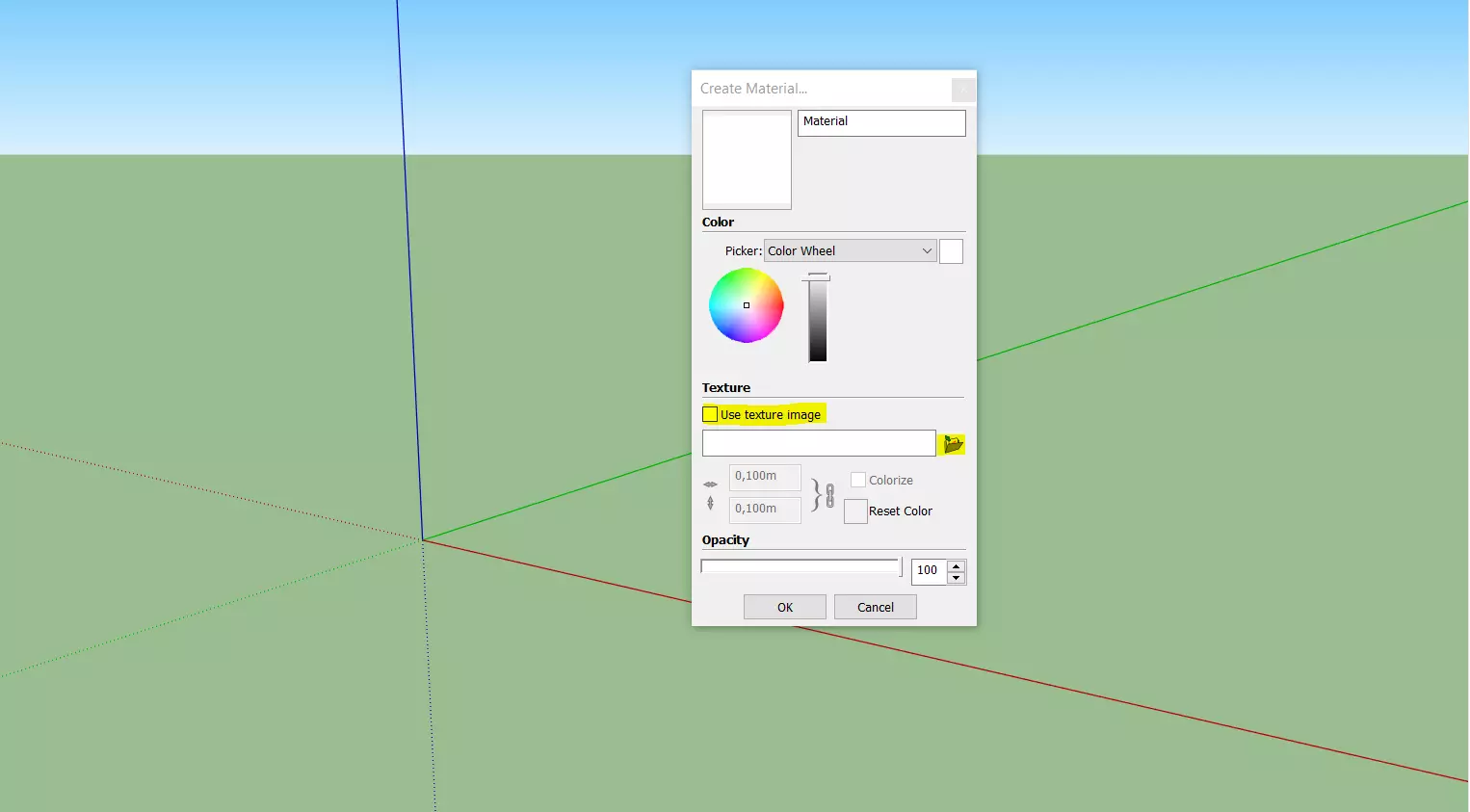
Sometimes, no matter how many sites I scour, I can’t find just the right texture to suit my project. That’s when I roll up my sleeves and create my own textures. If you’ve got a specific material in mind, take a good photo and make it into a texture! All you need is a well-lit image that captures the details. This approach guarantees exclusivity and can give your design a unique flair.
How to Apply a Texture to Your 3D Project

Applying textures in SketchUp is as thrilling as unwrapping a surprise gift. By following a few simple steps, you can dress up your models:
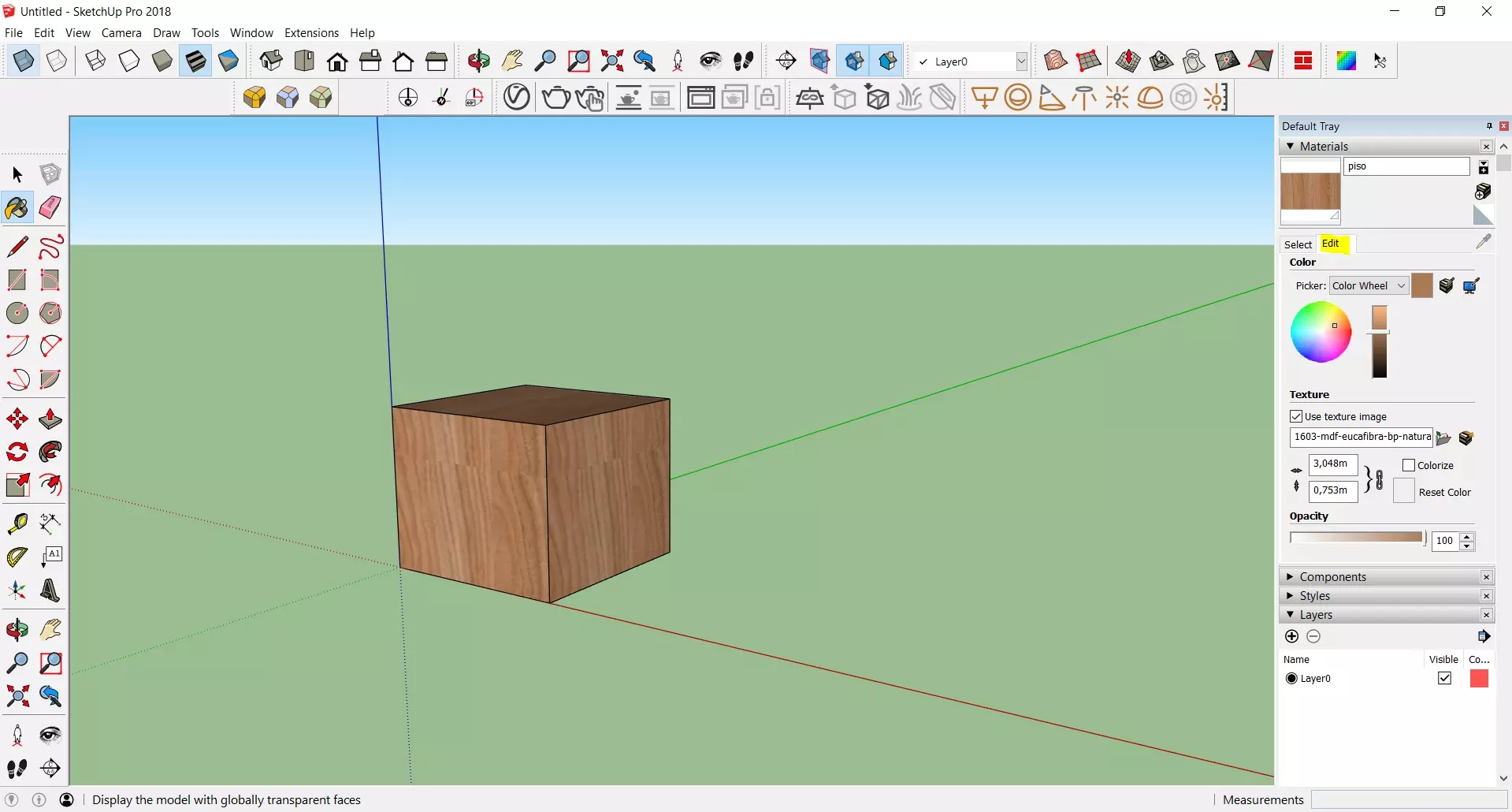
- First, select the face where you want to apply your texture.
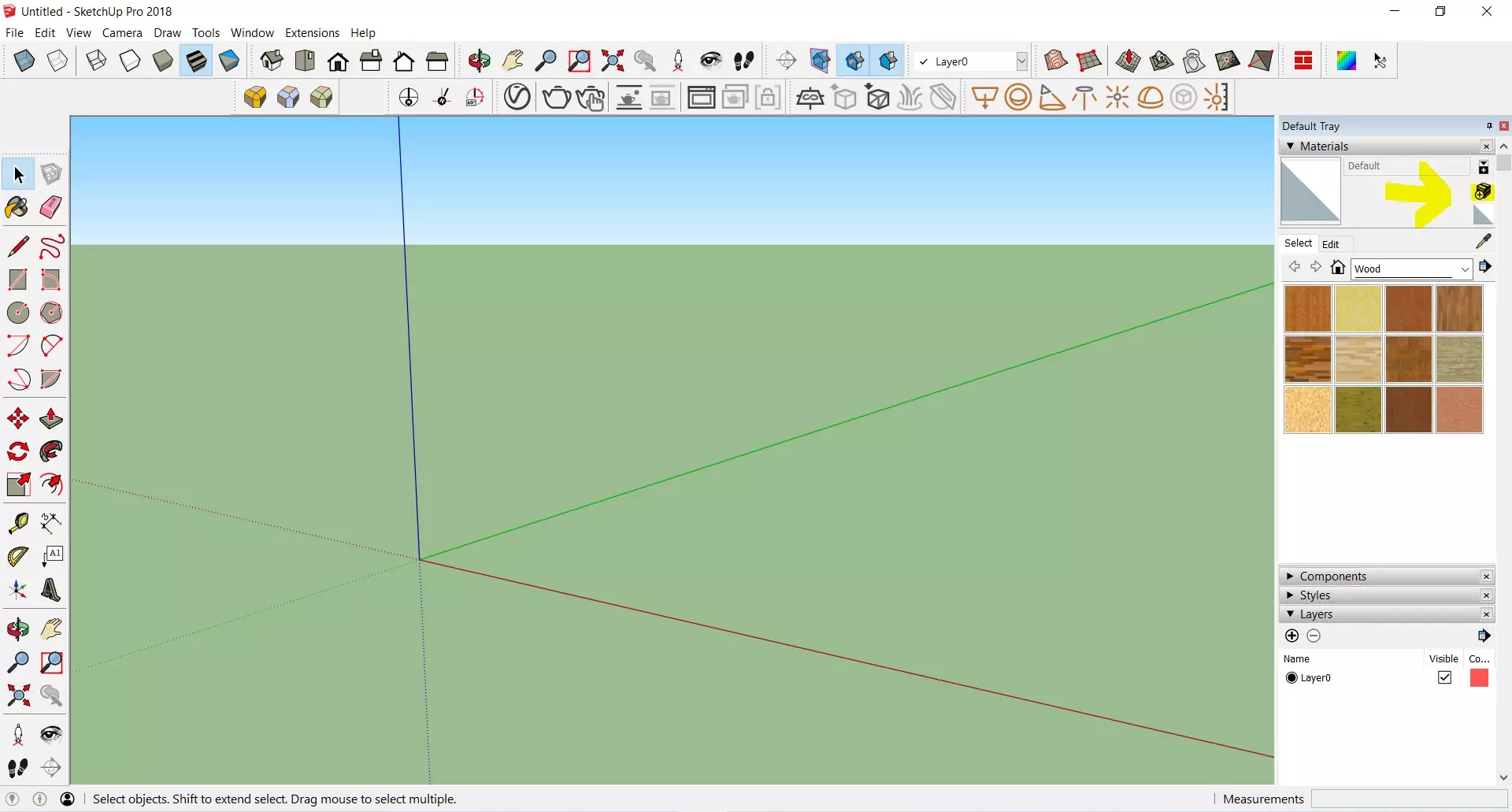
- Open the Materials panel and click on the texture you’d like to use.
- Ta-da! Apply it to the selected face. But wait—there’s more!
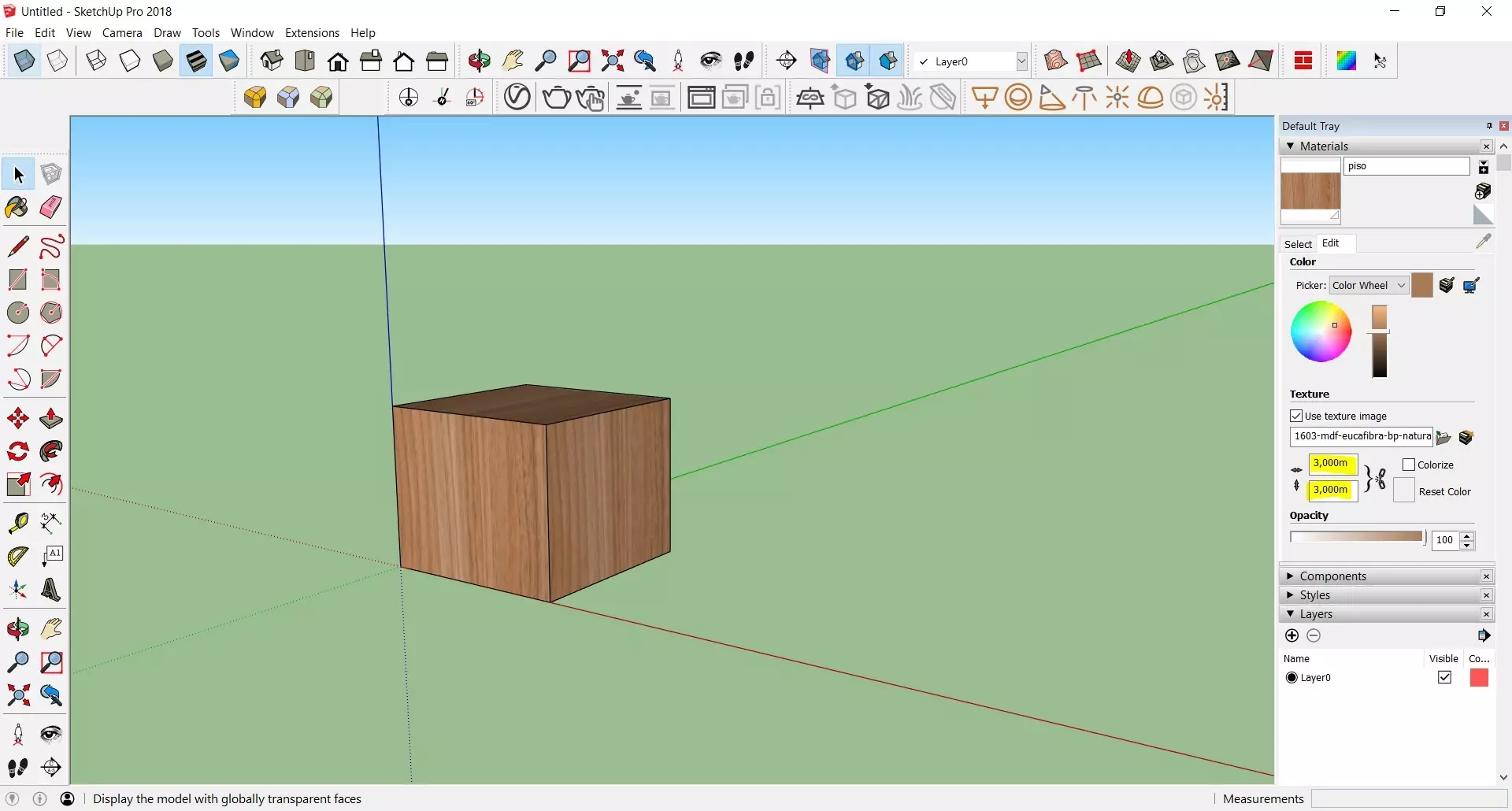
Once applied, I recommend adjusting the texture position and scale for the most natural appearance. This way, everything will fit nicely, like putting the last puzzle piece in place—it just feels right!
Adjusting and Personalizing Textures
Now that you’ve applied your textures, here comes the fun part: tweaking! It’s like seasoning a dish. You have to adjust the position, opacity, and even additional colors to get the final touch just right. That’s where the magic happens! When adjusting textures, I suggest using the pin tools for precise control. They’re like having a personal stylist for your model.
Saving a Texture in the SketchUp Library
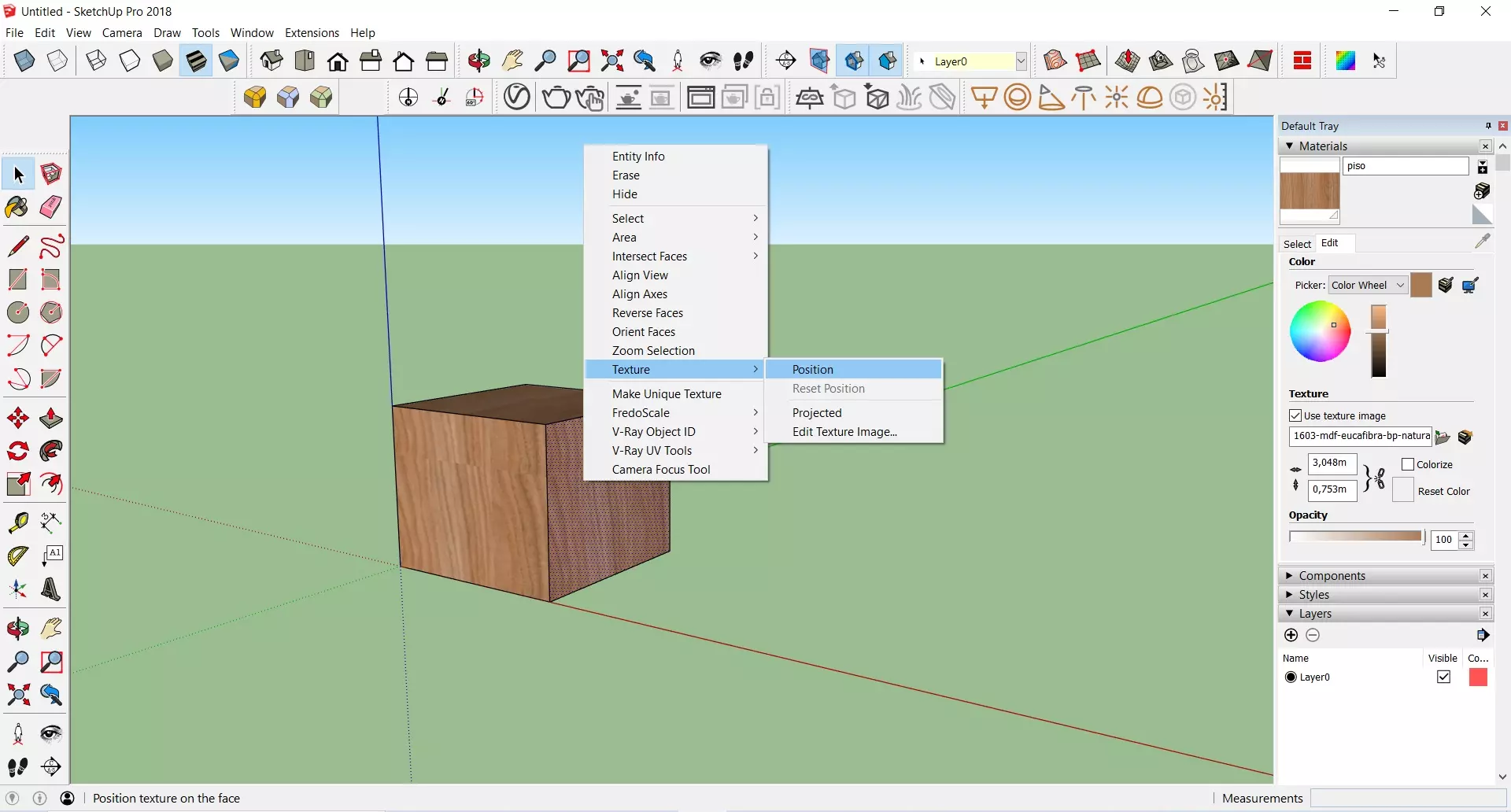
After pouring your heart into creating a custom texture and making adjustments, you’d want to keep it safe for future projects. To save it, simply right-click on the texture and choose “Save As.” Making backups of your best textures is like having a Swiss Army knife ready for any design job that comes your way.
Conclusion
Mastering textures in SketchUp opens up a new dimension of creativity and realism. When you know where to find quality materials, how to apply them, and how to adjust them to fit your vision, your projects will truly shine. Armed with these insights, jump into your work and watch as your creations come to life!
“`